Custom visualization
Aside from the true simulation state, MuJoCo provides ways to draw additional 3D geometries (geoms) onto an existing 3D scene.
Note
Custom visualization requires the viewer (or viewer-ui), renderer, or cpp-viewer Cargo feature to be enabled.
In MuJoCo-rs, drawing is done through MjvScene. There are three things that expose a scene for drawing custom visual-only geoms:
Drawing to a scene
To draw custom geoms to a scene inside a viewer or a renderer, applications typically call two methods when updating custom geoms:
MjvScene::clear_geom, which will clear all the existing geoms.
MjvScene::create_geom, which will add a new geom to the scene.
Note
create_geom panics when the user scene has no free geom slots.
Use try_create_geom for the fallible variant that returns Result.
Increase the configured user-geom capacity if you hit this limit.
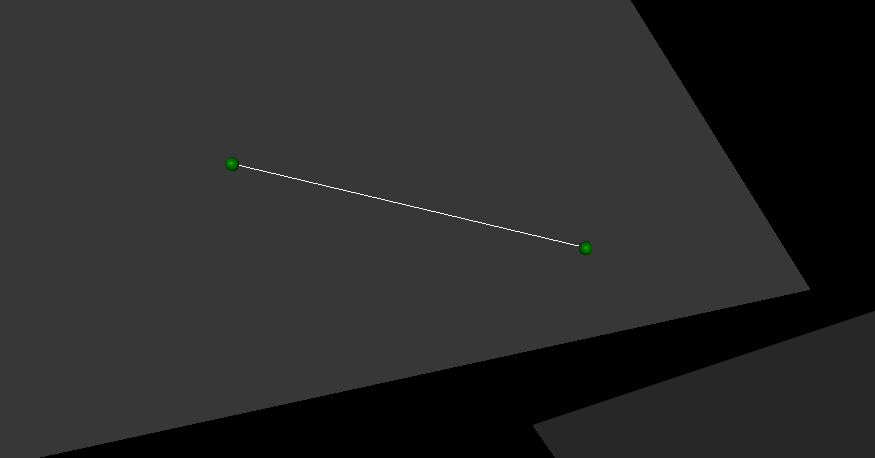
This example shows how to draw a line between two balls.
In the example, we start drawing by first obtaining a mutable reference to the user scene and clearing its geoms, which are otherwise preserved between syncs:
viewer.with_state_lock(|mut state_lock| {
    let scene = state_lock.user_scene_mut();  // obtain a mutable reference to the user scene.
    scene.clear_geom();  // clear existing geoms
}).unwrap();
We then initialize a new geom. We make it a line (MjtGeom::mjGEOM_LINE) and give it a pure white
color (Some([1.0, 1.0, 1.0, 1.0])). We leave other fields at None, as they are not needed
at this stage.
viewer.with_state_lock(|mut state_lock| {
    let scene = state_lock.user_scene_mut();  // obtain a mutable reference to the user scene.
    scene.clear_geom();  // clear existing geoms

    let new_geom = scene.create_geom(
        MjtGeom::mjGEOM_LINE,  // type of geom to draw.
        None,  // size, ignore here as we set it below.
        None,  // position: ignore here as we set it below.
        None,  // rotational matrix: ignore here as we set it below.
        Some([1.0, 1.0, 1.0, 1.0])  // color (rgba): pure white.
    );
}).unwrap();
In the above snippet, defining the fields that we’ve set to None would work, making this the final step.
However, we would need to know their correct values.
We obtain the needed values using MjvGeom::connect,
which calculates the values to result in the geom pointing from one point to another.
viewer.with_state_lock(|mut state_lock| {
    let scene = state_lock.user_scene_mut();  // obtain a mutable reference to the user scene.
    scene.clear_geom();  // clear existing geoms

    let new_geom = scene.create_geom(
        MjtGeom::mjGEOM_LINE,  // type of geom to draw.
        None,  // size, ignore here as we set it below.
        None,  // position: ignore here as we set it below.
        None,  // rotational matrix: ignore here as we set it below.
        Some([1.0, 1.0, 1.0, 1.0])  // color (rgba): pure white.
    );

    /* Read X, Y and Z coordinates of both balls. */
    let ball1_position = ball1_joint_info.view(&data).qpos[..3]
        .try_into().unwrap();
    let ball2_position = ball2_joint_info.view(&data).qpos[..3]
        .try_into().unwrap();

    /* Modify the visual geom's position, orientation and length, to connect the balls */
    new_geom.connect(
        0.0,            // width
        ball1_position, // from
        ball2_position  // to
    );
}).unwrap();
The following image shows the result of the above example.